Your session timed out
You're being logged out due to inactivity.
 Women's
Eyeglasses
Women's
Eyeglasses Men's
Eyeglasses
Men's
Eyeglasses Kids'
Eyeglasses
Kids'
Eyeglasses Transitions®
 Blue-violet
Light
Blue-violet
Light
Get up to 80% off frames
Use your insurance and see the difference benefits make.
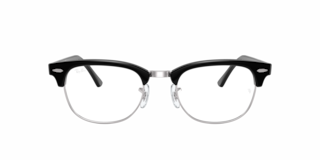
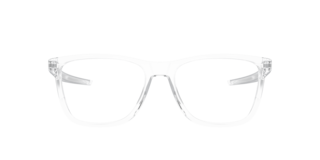



 Women's
Sunglasses
Women's
Sunglasses Men's
Sunglasses
Men's
Sunglasses Kids Sunglasses
 Polarized
 Prizm™ Polarized
Get up to 80% off frames
Use your insurance and see the difference benefits make.



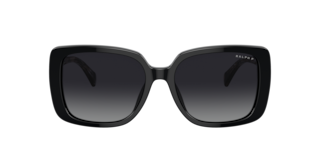
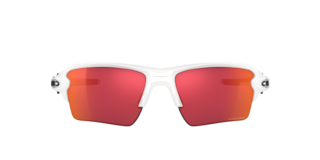

Our sleekest frames yet
AI glasses, made for prescriptions.
 Explore the features
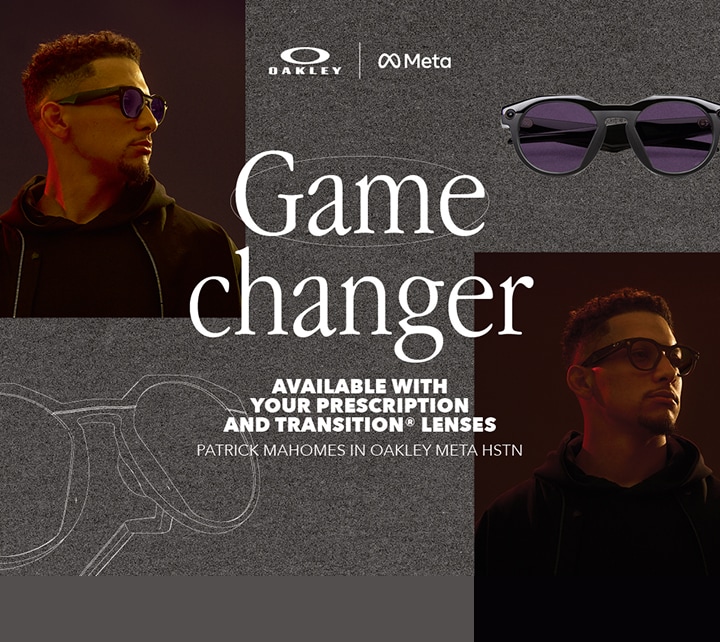
Keep moving
With ultra-dynamic lenses that rapidly adapt
to all conditions.
Iconic style, cutting-edge technology and light-weight form unite.
SHOP RAY-BAN | META Feature highlights
 Captured on Ray-Ban | Meta
 Controls & choices
With ultra-dynamic lenses that rapidly adapt
to all conditions.
SHOP OAKLEY | META Discover Oakley Meta AI
 Take a closer look
 Explore the features
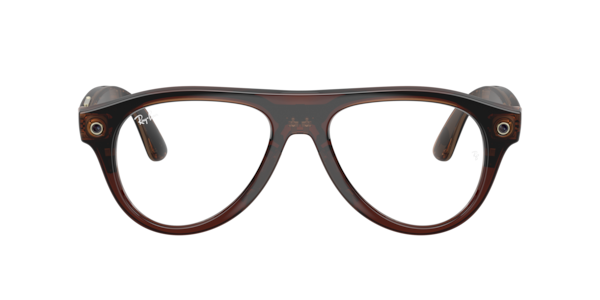
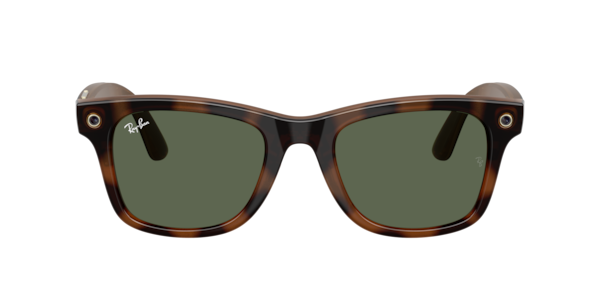
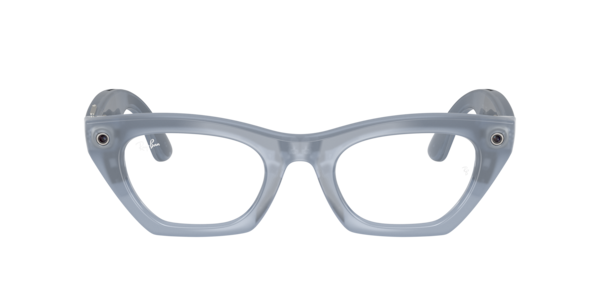


New to contacts? Learn more
Apply your vision insurance
FSA | HSA Eligible
Need any help? Contact us

Complete your look with
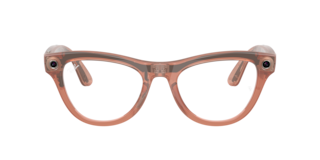
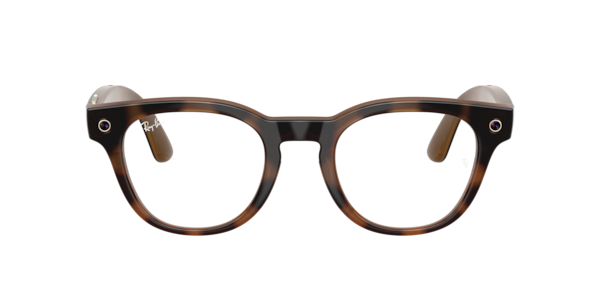
Ray-Ban Meta (Gen 3)
Ray-Ban Meta (Gen 3)
Welcome to the next generation of the world's #1 selling AI glasses. Now available at Target Optical.
Deals on frames +
lenses
Pick your frame, add lenses, and save more.
Designer clearance
Eyewear deals
Contact Lens deals
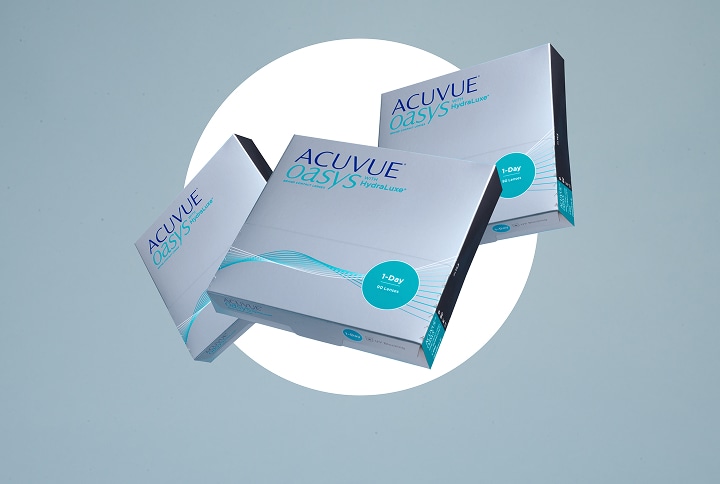
Get 25% off your first purchase of contact lenses.
Use your benefits at TargetOptical
Choose from a wide range of
frames,
lenses and designer brands
Comprehensive digital eye exams
Shop online from anywhere
Convenient store locations and
hours
of operation
Save up to 80% on frames with your insurance
Refresh your prescription and use your vision benefits to save on
glasses and contact lenses.
Check your insurance eligibility
We accept most major insurance plans. Simply search for yours from the panel below. Learn more about insurance
STEP 1 / 2 Select your carrier
We also accept out-of-network plans
If your plan is not in-network, you can submit a claim form directly to your insurance company and receive a reimbursement after purchase. Download Form
Need help?
 Give us a call at
 Check out our
 We also accept out-of-networks plans
You may also use out-of-network benefits at Targetoptical.com for most other vision insurance companies, like VSP. You can submit the claim form directly to your insurance company. Download the form
finale:Sit tight, we're looking for you
We're finding your insurance benefits information. This may take a few minutes.

 Success! We found you
See below for your available benefits.
| Frames |
| Good news, you can still save! Get 40% off prescription glasses or 20% off frame only applied automatically at checkout. Having issues? Use these promo codes 40% off prescription glasses 20% off frame only |
| Lenses |
| |
| Contact lenses |
| |
| Eye exam |
|
 Benefits
unavailable
Benefits
unavailable
Frames
Good news, you can still save! Get 40% off prescription glasses or 20% off frame only applied automatically at checkout. Having issues? Use these promo codes 40% off prescription glasses 20% off frame only |
Lenses
|
Contact lenses
|
Eye exam
|
Too many failed attempts
Try again in [xx:xx] minutes.
For your security, we've temporarily blocked your insurance look-up function.
We also accept out-of-network plans
If your plan is not in-network, you can submit a claim form directly to your insurance company and receive a reimbursement after purchase. Download Form
Need help?
We're having trouble finding you
Make sure what you entered matches the insurance information on file.
For your security, you will have
to look up your insurance benefits. For help call, 1-877-848-8476
Need help?
Discover all our accepted vision plans online and in store. Discover more
Something went wrong
We're having some technical issues and aren't able to retrieve your insurance benefits right now. We suggest trying again in a few minutes.
Need help?
Reset your password


Introducing Meta Glasses
Discover the new Meta Glasses, stylish prescription-only frames designed to get the most out of your day. Find the perfect AI glasses for you.
Product highlights
With Meta AI built right into your frames, get instant inspiration, capture vibrant photos and videos, call loved ones, or listen to your favorite music — all hands-free. Chat on WhatsApp, Instagram, or Messenger, without pulling out your phone to send a text. With prescription lenses, bold colors, premium finishes, and exclusive collaborations, these AI glasses are made for you.

A personal expert by your side.
Answers, tips and inspiration are a question away. Forgot an ingredient for dinner? Ask Meta AI for a substitute to save a trip back to the store. Touring a new city? Find out where to grab the best coffee nearby.

Translate across 20+ languages.
Travel like a local whether you’re navigating a bustling market in Spain or having a conversation in Japanese. Just say “Hey Meta” to start a live translation and connect with people as easy as one, deux, tres.

Capture the world as you see it.
Instantly record the moment while staying in the moment. Simply press the button or say “Hey Meta” to take a photo or video of what you see in true-to-life, vibrant color ready to share on Instagram, WhatsApp or text.

Tune in without tuning out.
Connect Spotify*, Apple Music and Audible to your glasses and say “Hey Meta” to play what you love,
hands-free. Hear premium sound through open-ear speakers while staying aware of the world around you.
*Additional account required. Fees may apply.
Add your prescription
1 | Find your perfect pair
Discover our range of Meta Glasses and select your favorite.
2 | Select your lenses
Choose your lenses, add your prescription, and sync your insurance anytime.
3 | Personalize your lenses
Select lens type and thickness, and add lens treatments like Transitions® lenses.
4 | Complete your purchase
We ensure 100% satisfaction with our 30 day happiness guarantee.
Meta AI App
Manage your glasses and customize settings, import and share photos, and interact with your personalized Meta AI* assistant seamlessly across your glasses and the app. Learn about features and see how others are getting the most out of Meta AI through the feed.
Get support
Pick up in store
Shop online and pick up for free at your nearest store. You can select this shipping method at checkout.
Help getting started
Our expert team will set up your glasses for you and provide free aftercare in store.
Find a storeTry your glasses in store
See which style is best for you and try out all the innovative features.
FAQ
Returns are rare for Meta glasses, but if you think your glasses are defective and the return timeframe has expired you can open a warranty claim (meta.com/help/support) for a repair or replacement..
You can find your glasses serial number in two places:
In the Meta AI app under:
Settings>[select device (if more than one paired)]>General>About
Etched on the left temple
arm interior
1. Open the Meta AI mobile app and tap the glasses icon. If you have multiple devices paired
with the Meta AI mobile app,
swipe left or right to select the correct device.
2. Tap Settings.
3. Tap Customize
controls.
4. Tap Action button.
5. Select the action you want to configure the action
button for. Some actions,
like live translation or quick connect,
may require additional steps to set up.
Meta Glasses feature user-adjustable temple tips so you can fine-tune your fit at home- no tools or heat needed. Simply hold the glasses arm at the small groove above the flexible tip, then apply slow, steady pressure to bend the tip inward or outward up to 5mm. They may feel stiff or resistant at first, but with patient, small adjustments you can adjust them without overbending.
The temple tips are designed for up to 10 adjustment cycles, which is plenty of room to dial in a comfortable, secure fit. We recommend trying small adjustments and wearing your glasses for a bit before adjusting again. After adjusting, just make sure your glasses still sit correctly in the charging case.
Glasses provide over 8 hours of mixed use with a full charge.
Charging case provides
another 40 hours of charge.
Look and Ask with Meta AI allows users to say “Hey Meta, look and…” to ask the glasses questions about the world around them. Users can ask Meta AI the definition of a word in the book they're reading, the name of a houseplant they see, or to write a funny caption about the dog chasing its tail in front of them.
1. Open the Meta AI App and tap the Glasses icon. 1. If there are multiple devices paired
with the Meta AI mobile app,
swipe left or right to select the wanted device.
2. Tap Settings.
3. Tap Meta AI.
4. Toggle Camera use on.
Using Look and Ask with Meta AI
There are 2 ways to
use the "look and ask"feature:
1. Take a photo and following up by asking a question:
“Hey Meta take a photo.” Followed by,
“Hey Meta what can I cook with this?”
2. Starting the command with “Hey Meta look and…”
i.e.,
“Hey Meta look and tell me what breed this dog is.”
1. Turn the glasses off and wait 30 seconds.
2. Slide the power switch to on position. The
notification LED will blink white.
Note: A power cycle does not remove captures,
unpair glasses,
or change app settings.
Force restart using Meta AI app
1. Open the Meta AI App and tap the Glasses icon
1. If
multiple devices are paired,
swipe to select the correct one.
2. Tap Settings
3. Tap General
4. Tap Force
restart
Manual force restart
1. Slide the power button back to turn glasses
off.
2. Press and hold the capture button.
3. While holding the capture button,
slide the power button forward to turn glasses on.
4. Immediately release the capture
button once the status LED turns red.
Note: Glasses may take several minutes to reconnect.
If reconnection fails,
unpair the glasses from the Meta AI App and the phone’s Bluetooth menu,
then pair again.
Note: Factory reset permanently erases all captures. Use only as a last resort.
Using
the Meta AI app
1. Open the Meta AI App and tap the Glasses icon
If multiple devices
are paired,
swipe to select the correct one.
2. Tap Settings
3. Tap General
4. Tap Factory
reset and follow on-screen instructions
Perform a manual factory reset
1. Close
the right temple arm.
2. Press capture button five times until LED turns orange.
3.
Press and hold capture button until LED flashes orange and white.
4. Release capture
button. LED will blink white,
then turn solid green,
then turn off.
5. Unpair and re-pair glasses with the Meta AI app.
Using the Meta AI App
1. Open the Meta AI App and tap the Glasses icon.
1. If multiple
devices are paired,
swipe to select the correct one.
2. Tap Settings
3. Tap Updates
Help Center: How to
restart AI glasses.
1. Ensure glasses have at least seventy-five percent charge.
2. Keep glasses close to
phone.
3. Ensure phone's Bluetooth and Wi-Fi are on.
4. Check phone's OS settings:
1. iOS: Local Network Permissions enabled.
2. Android: Location Services and Location
Permissions enabled. At least “allow while using” permissions are needed.
5. Force restart
glasses.
6. As a last resort,
factory reset.
Note: Logging out of the app deletes all captures from the app and any settings associated
with the glasses. Customers should save captures to their phone or cloud storage before
logging out.
1. Open the Meta AI App and tap the Menu icon (=) to open the side bar.
2. Tap the Settings icon (gear) at the bottom of the side bar.
3. Scroll down to Your
Account section.
4. Tap Log Out.
1. Open the Meta AI App and tap the Glasses icon 1. If multiple devices are paired,
swipe to select the correct one.
2. Tap Settings
3. Tap General
4. Tap Unpair
glasses and confirm Unpair
5. Disconnect the phone's Bluetooth. 1. Android phones
disconnect Bluetooth automatically when
unpairing.
2. iOS phones need to be manually disconnected.
Manually disconnect
Bluetooth on iOS phone
1. Open Settings
2. Tap Bluetooth
3. Select the ‘i’ icon
next to your Ray-Ban Meta Glasses or Oakley Meta Glasses or Meta Glasses
4. Tap Forget
this device
Failure Causes:
Phone Bluetooth settings/permissions are not enabled
Glasses are not
in Bluetooth range
Scanning timeout reached
Glasses are powered off
Glasses no
longer in pairing mode
Glasses manually disconnected by user
Glasses manually forgot
by user in OS settings
Glasses Bluetooth broken
Troubleshooting:
1. Make sure
glasses are charged,
turned on,
and placed in case.
2. Make sure glasses are closed.
3. Reboot glasses.
4. Forget
device from the Bluetooth settings of the phone and try pairing again.
5. Re-trigger
pairing mode: Press and hold pairing button on the back of the case for 5 seconds. Release
when case LED pulses a blue light.
6. Factory reset may be needed: If the notification LED
does not turn blue,
try factory reset your glasses so you can pair them with this phone.
7. If the issue still
persists,
check warranty eligibility.
Failure Causes:
Glasses powered off
Glasses not in range
Battery dead
Wi-Fi
connect attempt fails
Additional Troubleshooting:
1. Reboot glasses.
2. Make
sure glasses are closed.
3. Charge your glasses: your glasses may be out of battery.
Charge them in their case before trying again.
4. If the issue still persists,
check warranty eligibility.

pupillary distance

what is it?
Pupillary distance measures the space (in millimeters) between the pupils of your eyes.
where can I find it?
On previous eyewear receipts or your prescription. Or measure it yourself with our handy PD ruler.
download PD rulerPaying in installments
Want to spread out the cost of your Target Optical order? Select Affirm or Cash App Afterpay as your payment method at checkout to see the different options offered. With no hidden fees.
With Affirm, pay in 4 interest-free installments every 2 weeks or you can pay over time with monthly payments over 3, 6 or 12 months. Payment options are offered by Affirm, are subject to an eligibility check, and may not be available in all states. CA residents: Loans by Affirm Loan Services, LLC are made or arranged pursuant to a California Finance Lender license.
With Cash App Afterpay, make 4 interest-free* payments every 2 weeks or you can pay over time with monthly payments spread over 6 or 12 months**. *You must be over 18, a resident of the U.S. and meet additional eligibility criteria to qualify. Late fees may apply. Eligibility criteria apply. See www.afterpay.com for more details. Loans to California residents made or arranged pursuant to a California Finance Lenders Law license. © 2020 Cash App Afterpay US **Loans through the Cash App Afterpay Pay Monthly program are underwritten and issued by First Electronic Bank, Member FDIC. Loans are subject to credit check and approval and are not available to residents of Hawaii, New Mexico, West Virginia and Nevada. Click here for complete terms.